2023 Terminal Setup
💻 The Terminal
Ah, the terminal! It’s 2023, and time for an update. Over the years, I’ve been refining my terminal, adjusting to my ever-changing requirements. Now, I’ve reached a setup that’s minimalistic, efficient, and user-friendly. So, tag along as we delve into this refreshed guide for establishing a terminal that’s aesthetically pleasing and functionality-rich.
🗺️️ Developer Environment: The Blueprint
Just a heads-up, this write-up was written specifically for macOS Ventura. Nonetheless, this configuration should pretty much resonate with most Linux and macOS flavors. Ensure to scrutinize the instructions from the projects utilized during the setup process.
🚀 Step-by-Step Guide
⌨️ Shell - ZSH
I’m still a fan of ZSH. It’s been my faithful companion for years, and it continues to deliver. I’ve explored a few of the recent Rust alternatives, but none have truly resonated since I don’t really require the additional features or accelerated speed. My configuration remains largely unchanged, although I’ve streamlined it slightly. While iTerm2 installation is quite popular, I’ve been comfortably utilizing the default terminal for some time, and it’s been performing to my needs.
🍺 Installing Homebrew
Our journey begins with the installation of Homebrew, an indispensable package manager. Setting it up is a piece of cake; you can consult their website for instructions. For your convenience, I’ve included the steps below.
/bin/bash -c "$(curl -fsSL https://raw.githubusercontent.com/Homebrew/install/master/install.sh)"🧬 Configuring ~/.zshrc
Create and/or open ~/.zshrc. We can tweak it using the following baseline. For now, this just enables some basic shell history.
# Set ZSH options
# Options details:
# http://zsh.sourceforge.net/Doc/Release/Options.html#index-HISTIGNOREALLDUPS
# http://zsh.sourceforge.net/Doc/Release/Options.html#index-SHAREHISTORY

setopt histignorealldups sharehistory

# Retain 1000 lines of history within the shell and save it to ~/.zsh_history:
HISTSIZE=1000
SAVEHIST=1000
HISTFILE=~/.zsh_history
🖋️ Giving Our Font a Facelift
Next, let’s equip our setup with a new font that supports glyphs (icons). Head over to https://www.nerdfonts.com and browse through their fonts. Feel free to select one or follow my suggestion of “FiraCode Nerd Font”. We can install this font using Homebrew.
You can add any desired fonts with Homebrew courtesy of the homebrew-cask-fonts project.
Tap with this command in your terminal
brew tap homebrew/cask-fontsInstall the font by typing
brew install --cask font-fira-code-nerd-fontWith the font installed, we’re ready to roll. We can assign the font during our
subsequent steps.
🎨 Giving Your Theme a Splash of Color
With our new, chic font installed, it’s time to infuse some vibrancy into our terminal. Head over to https://github.com/lysyi3m/macos-terminal-themes, select a theme, and adhere to their installation steps. Once the theme is installed, we can designate it as the default theme in our terminal preferences. Don’t forget to select the font we installed earlier. I’m currently utilizing the “VS Code Dark Plus” theme.
An additional customization I enjoy is modifying the window title. To do so, we can open the terminal preferences and adjust the window title to “Terminal” or any name of your choosing.
🚀 Prepping for a Journey to Outer Space
Now that we’ve got a captivating theme and font in place, we’re ready to set up a snazzy shell prompt. For this, we’ll be employing https://starship.rs/. We can abide by the instructions on their site or continue utilizing Homebrew to keep the ball rolling.
brew install starshipUpon the successful installation of https://starship.rs/, it will prompt us to append the following line at the end of the ~/.zshrc.
eval "$(starship init zsh)"While we’re in the ~/.zshrc, let’s introduce a simple alias to facilitate easier reloading of the zsh configuration.
alias rl='source ~/.zshrc'Your ~/.zshrc file should now resemble this:
# Set ZSH options
# Options details:
# http://zsh.sourceforge.net/Doc/Release/Options.html#index-HISTIGNOREALLDUPS
# http://zsh.sourceforge.net/Doc/Release/Options.html#index-SHAREHISTORY

setopt histignorealldups sharehistory

# Retain 1000 lines of history within the shell and save it to ~/.zsh_history:
HISTSIZE=1000
SAVEHIST=1000
HISTFILE=~/.zsh_history

alias rl='source ~/.zshrc'

eval "$(starship init zsh)"
For the first and last time, execute the following command to reload our zsh configuration.
source ~/.zshrcThis reflects my current configuration, but feel free to peruse their documentation and customize it to your preference by altering the ~/.config/starship.toml file.
# Inserts a blank line between shell prompts
add_newline = true

# Replace the "❯" symbol in the prompt with "➜"
[character] # The name of the module we are configuring is "character"
success_symbol = '🚀' # Symbol to display for successful operations
error_symbol = "🤯" # Symbol to display for errors

[git_commit]
commit_hash_length = 4 # Number of characters to display for the commit hash
tag_symbol = "🔖 " # Symbol to display for tags

[git_status]
conflicted = "🏳" # Symbol to display for conflicted files
ahead = "🏎💨" # Symbol to display for ahead status
behind = "😰" # Symbol to display for behind status
diverged = "😵" # Symbol to display for diverged status
up_to_date = "👍" # Symbol to display for up-to-date status
untracked = "🛤️" # Symbol to display for untracked files
stashed = "📦" # Symbol to display for stashed changes
modified = "📝" # Symbol to display for modified files
staged = '[++\($count\)](green)' # Symbol to display for staged files, including the count of staged files
renamed = "👅" # Symbol to display for renamed files
deleted = "🗑" # Symbol to display for deleted files

# Disable the package module, hiding it from the prompt completely
[package]
disabled = true
scan_timeout = 3000 # Timeout for package scanning in milliseconds
Now let’s run our rl alias, which will reload everything. We should be good to go with zsh, rad fonts, a delicious theme, and a fancy shell prompt. Enjoy
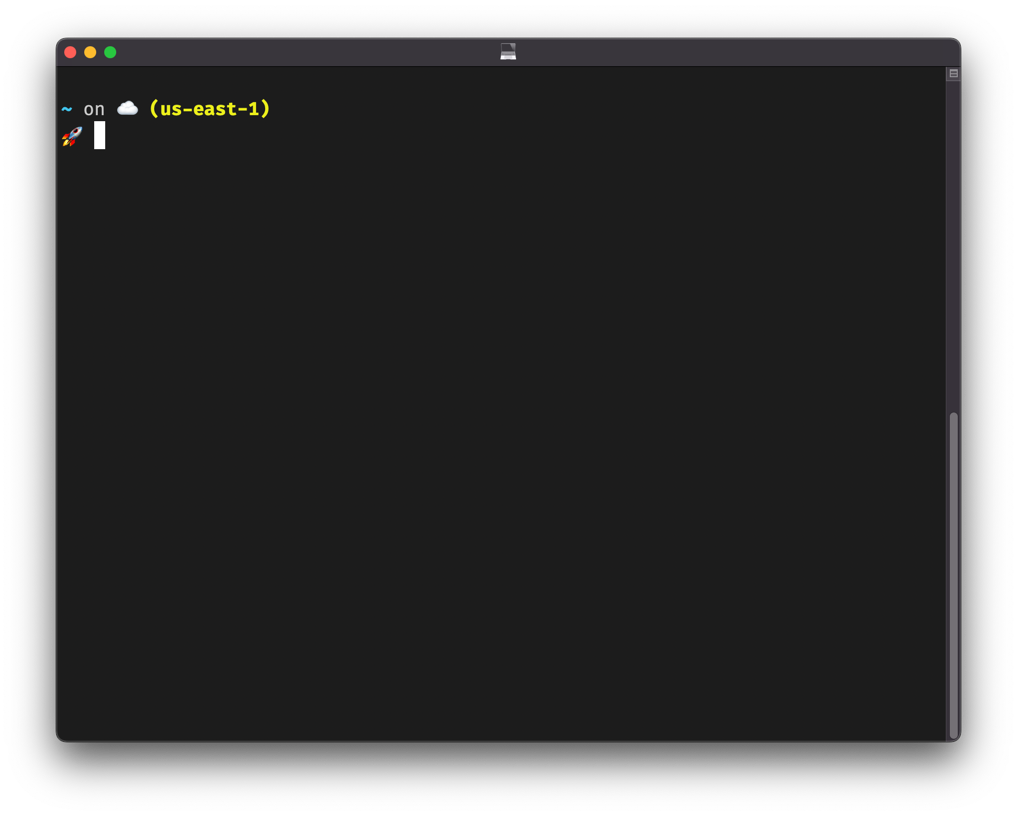
rlAfter this we can just run the rl alias command added earlier to reload our configuration. Now our shell should reload and look like this:
Finally, we are getting somewhere. The colors are nice, the font is easier to read, and we have some rad capabilities around customizing our shell prompt. I’d check out https://starship.rs/ a little to find out what you can do. For now, let’s just leave it as is and move on.
It should look like this…
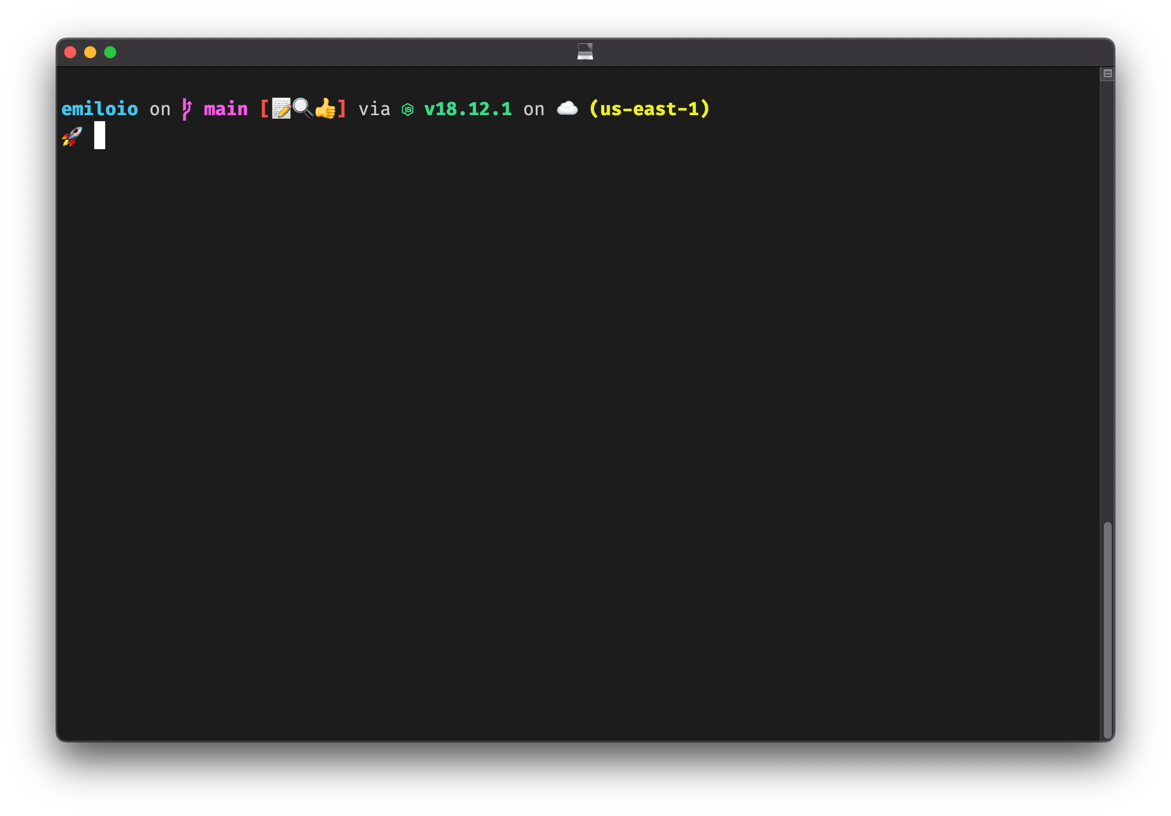
Then if you navigate into say for instance this projects directory where git is being used…
🛠️ Additional Tools
Here are some of the tools I use on a daily basis. Follow the links to learn more about them and decide if they’re right for you. I’ll try to keep this section updated when I have more daily drivers worth sharing.
📨 Questions, Issues, and Suggestions?
For now this site doesn’t support any direct feedback. Please submit any questions, issues, or suggestions directly to me via the one of the social media listed on this site.